Windows 11 privacy, security, and firewall setup (1/3)
A practical checklist for app permissions, diagnostic data, Defender, device security, and firewall profiles in Windows 11.
Windows 11 includes essential controls for app permissions, diagnostic data, device security, and firewall profiles. this Windows series helps you navigate these settings, showing you exactly where to review them and which options to select for a secure and private personal PC setup.
Menu names can change between Windows updates. If a setting is not shown, use the search box in Settings or Windows Security.
Before you start
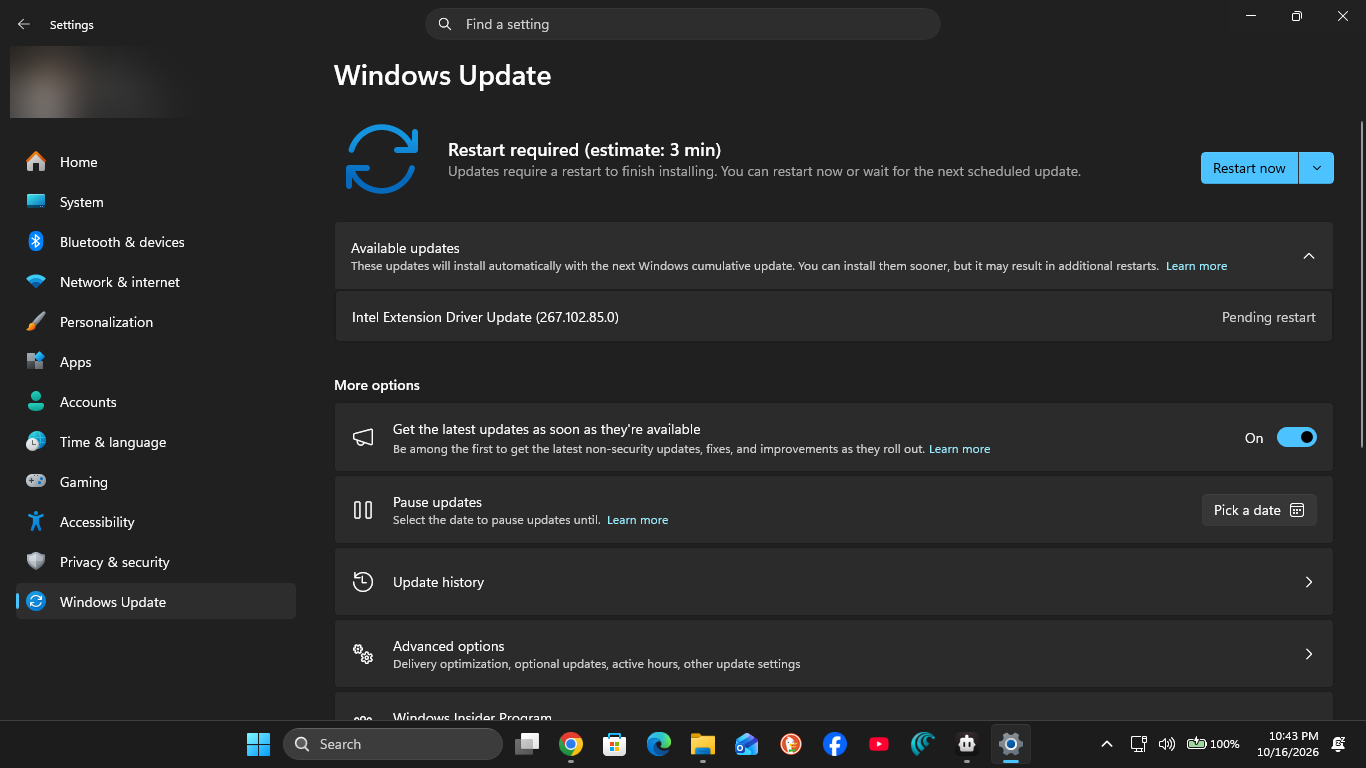
Install available Windows updates first. Open Start > Settings > Windows Update. Select Check for updates, install available updates, and restart if Windows asks.

If a work or school administrator manages the PC, some settings can be locked by policy. Do not try to bypass those controls. Ask the administrator if you need a change.
1. Review app permissions
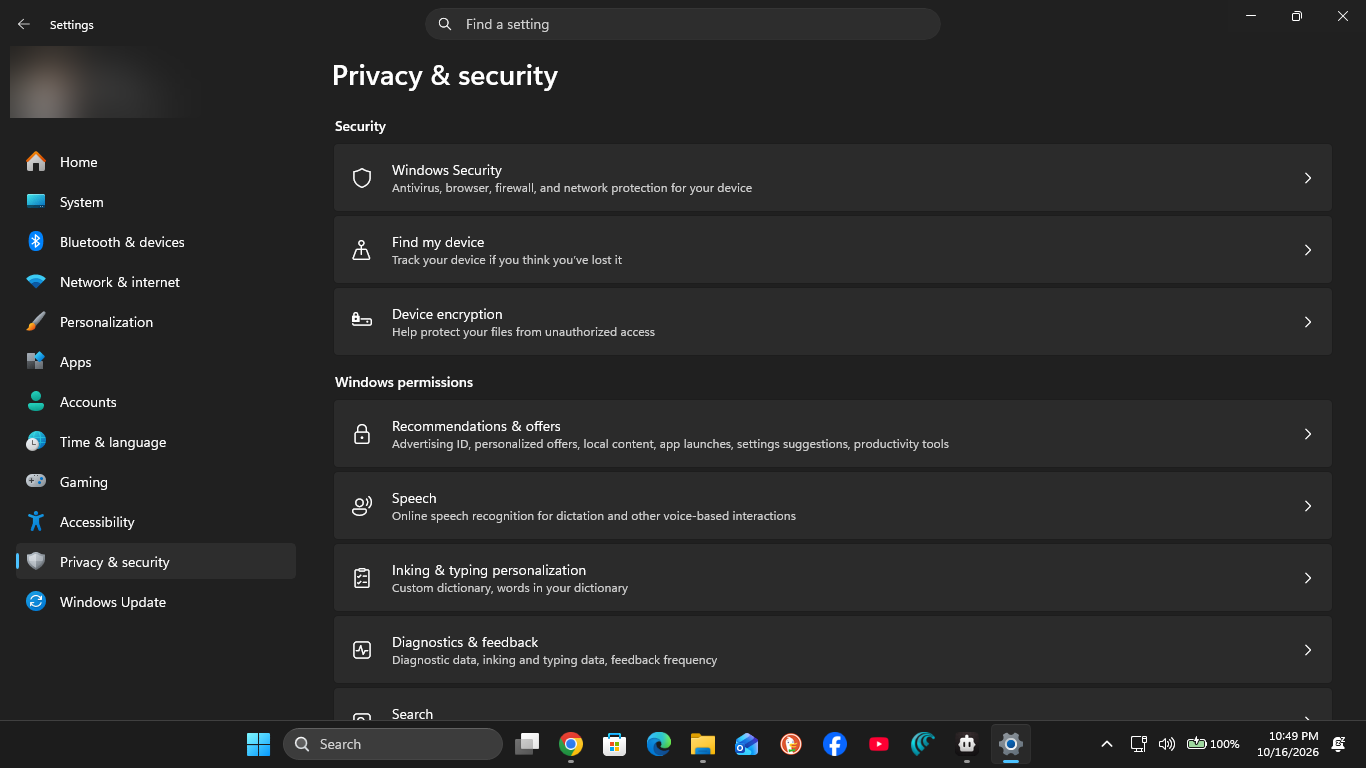
Open Start > Settings > Privacy & security. Review permissions such as Location, Camera, Microphone, and Contacts.
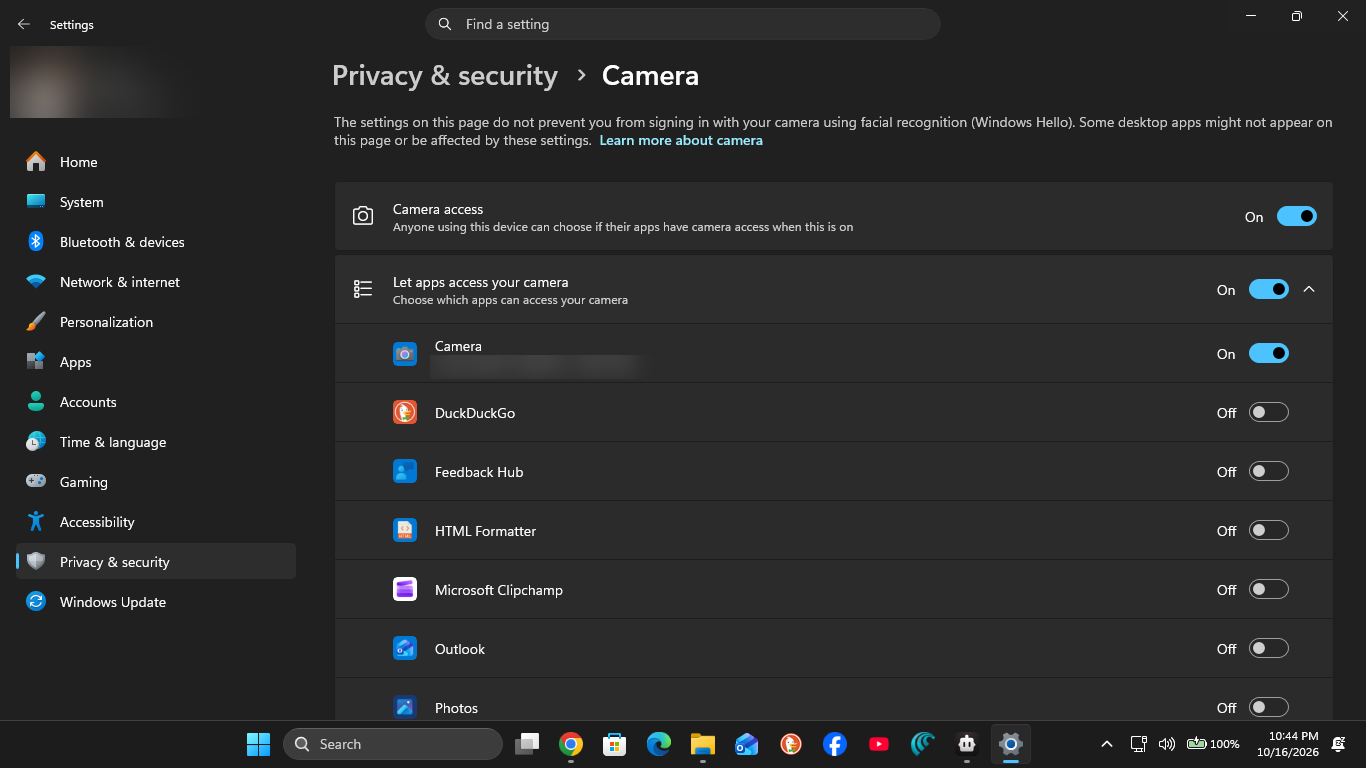
Open each permission. Turn off access for apps that do not need it. Keep access on for apps that need it for a task, such as video calls using the camera and microphone.
The list does not cover every desktop app or every permission. Check an app's own privacy options too. Remove an app if you do not trust it or no longer use it.
2. Reduce optional diagnostic data
Open Start > Settings > Privacy & security > Diagnostics & feedback.

If Send optional diagnostic data is on, turn it off if you do not want to send the additional diagnostic information. Windows still sends required diagnostic data. Microsoft says required diagnostic data helps keep Windows secure, up to date, and working normally.
You can also turn off Improve inking and typing if you do not want to send typing and handwriting data to improve those services. Review Tailored experiences or Personalized offers, depending on the Windows version, and turn it off if you do not want personalized suggestions based on diagnostic data.
3. Check Windows Security
Open Start > Windows Security. Check the Virus & threat protection page. Keep Microsoft Defender Antivirus real-time protection on unless you use another compatible antivirus product.
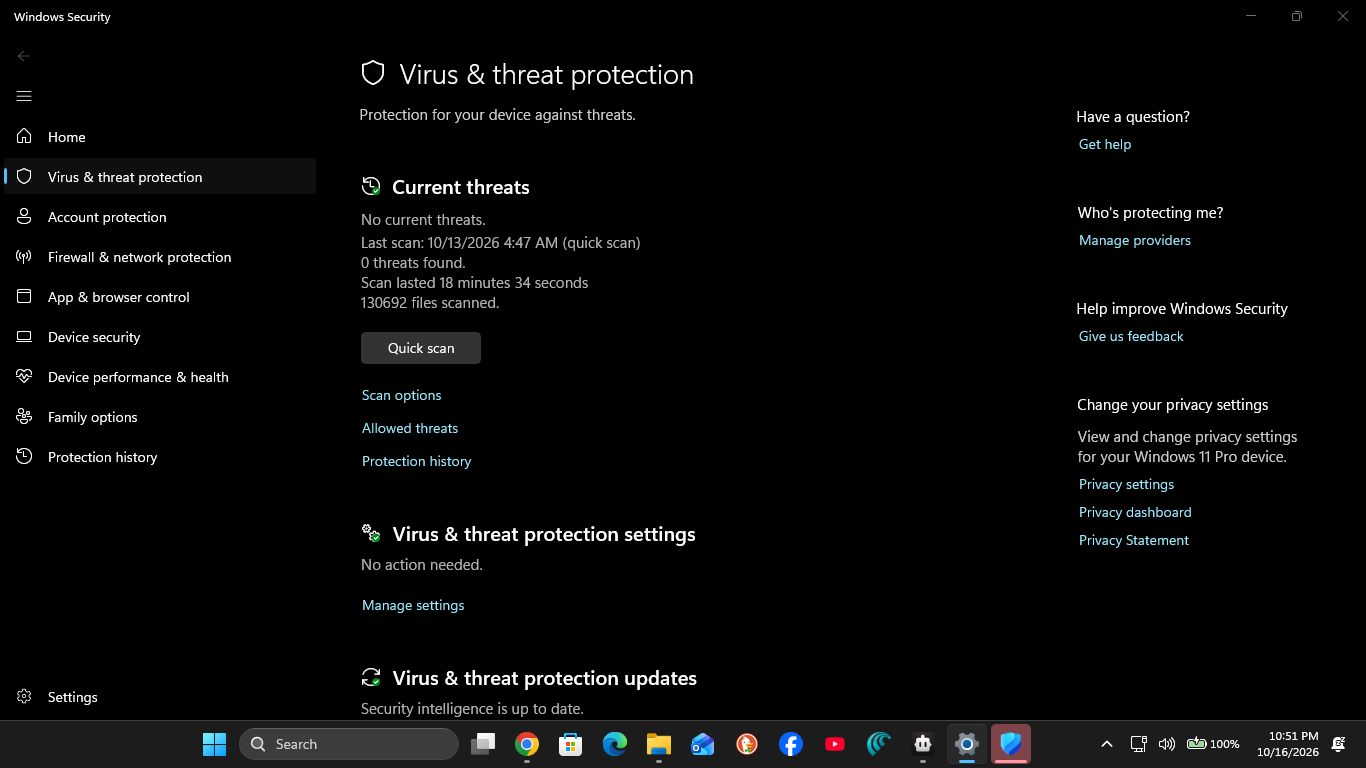
Select Protection updates > Check for updates to check for the latest security intelligence. Select Quick scan if you want to scan the PC for common threats.
Do not turn off real-time protection to solve an app problem. If one file causes a problem, review it carefully before you add an exclusion. An exclusion stops Defender from checking that file or folder during real-time scanning.
4. Review device security
In Windows Security, open Device security. Check the status of Secure Boot and Core isolation. If Memory integrity is available, leave it on unless Windows reports an incompatible driver or you have a tested reason to change it.
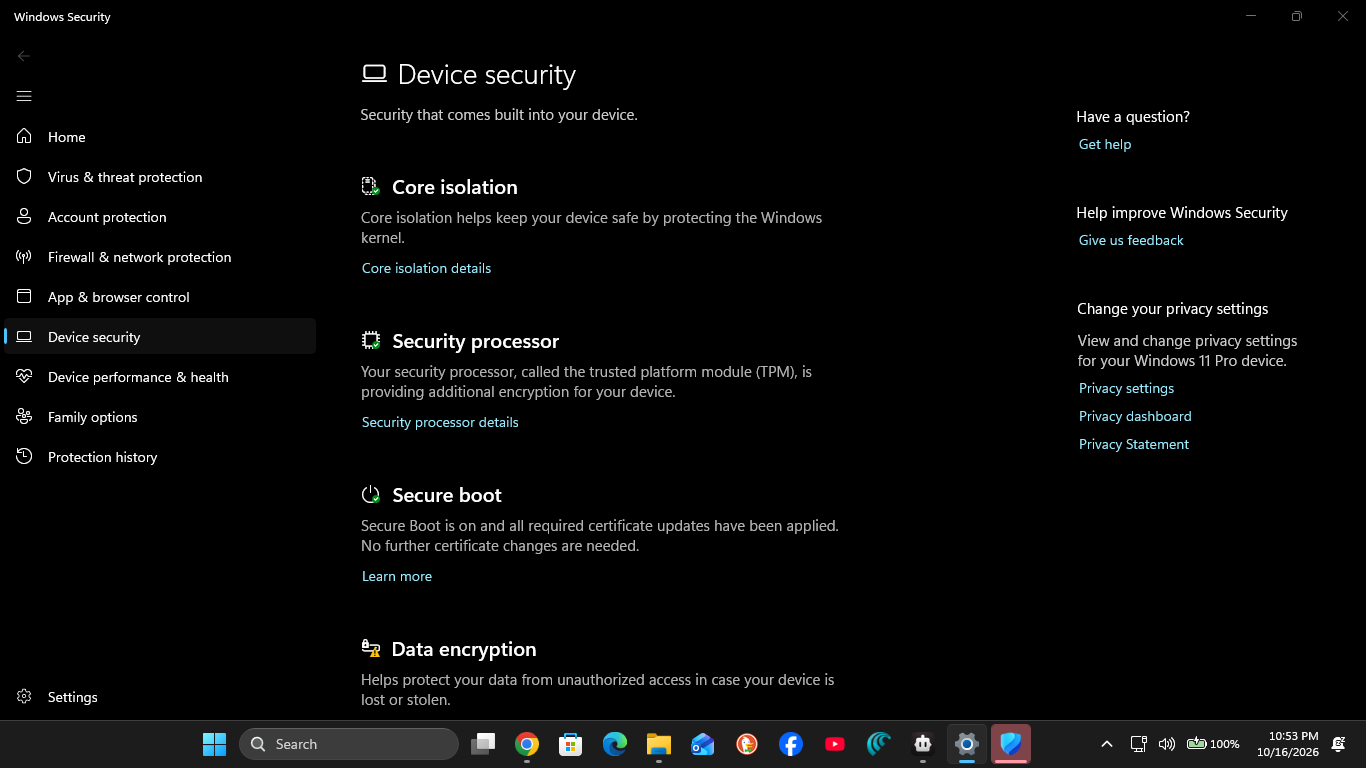
Do not remove a driver just to enable this setting. Check for an updated driver from the device maker first. Some security features depend on your PC hardware, so your screen can differ from the steps here.
5. Keep the firewall on
Open Start > Windows Security > Firewall & network protection. Check the active network profile and confirm that Microsoft Defender Firewall is on.
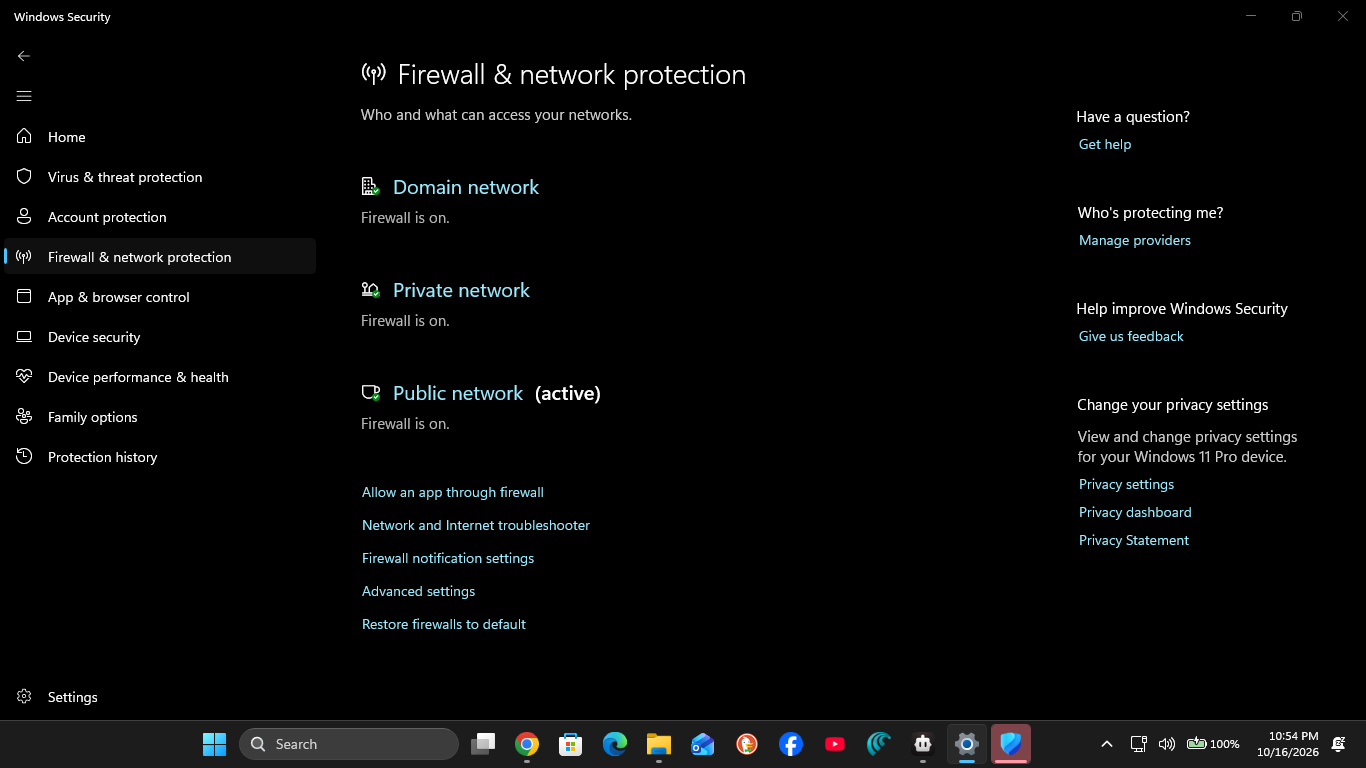
When an app is blocked, allow only the app you trust and need. Do not turn off the firewall to make an app work. An exception can expose the PC to more network traffic, so remove it when you no longer need it.
6. Use the right network profile
Use the Public profile for public Wi-Fi and networks where you do not trust the other devices. This profile applies stricter network discovery and sharing rules. It does not make your PC invisible to every device on the network.
Use Private only on a network you trust, such as a home network where you need file or printer sharing. To change a profile, open Start > Settings > Network & internet, select your connected Wi-Fi or Ethernet network, then select Public or Private under Network profile type.

Final check
Keep Windows updated. Review app permissions when you install an app. Leave Defender and the firewall on, and use Public for networks you do not trust.

These settings reduce unnecessary access and keep the built-in protections active. They do not replace backups or safe handling of links, downloads, and attachments.
Join the discussion
Have a thought or a correction? Send it over — your message opens in your email app.