

If you are here then you read my part 2 article, if not you can go back and read it before coming here as it is linked together:
https://mirror.xyz/pnokn.eth/rRSnKIDwTwiVNAuI1LvMyf0B9CFyJ_XA4lr6OyGS7Z8
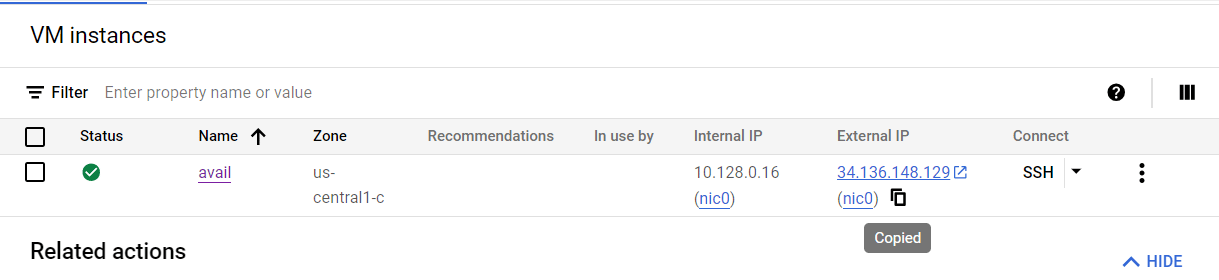
Let’s get started right away by changing our IP to a static one:
Go to VM instances and click on the name of your VM instance you want to change
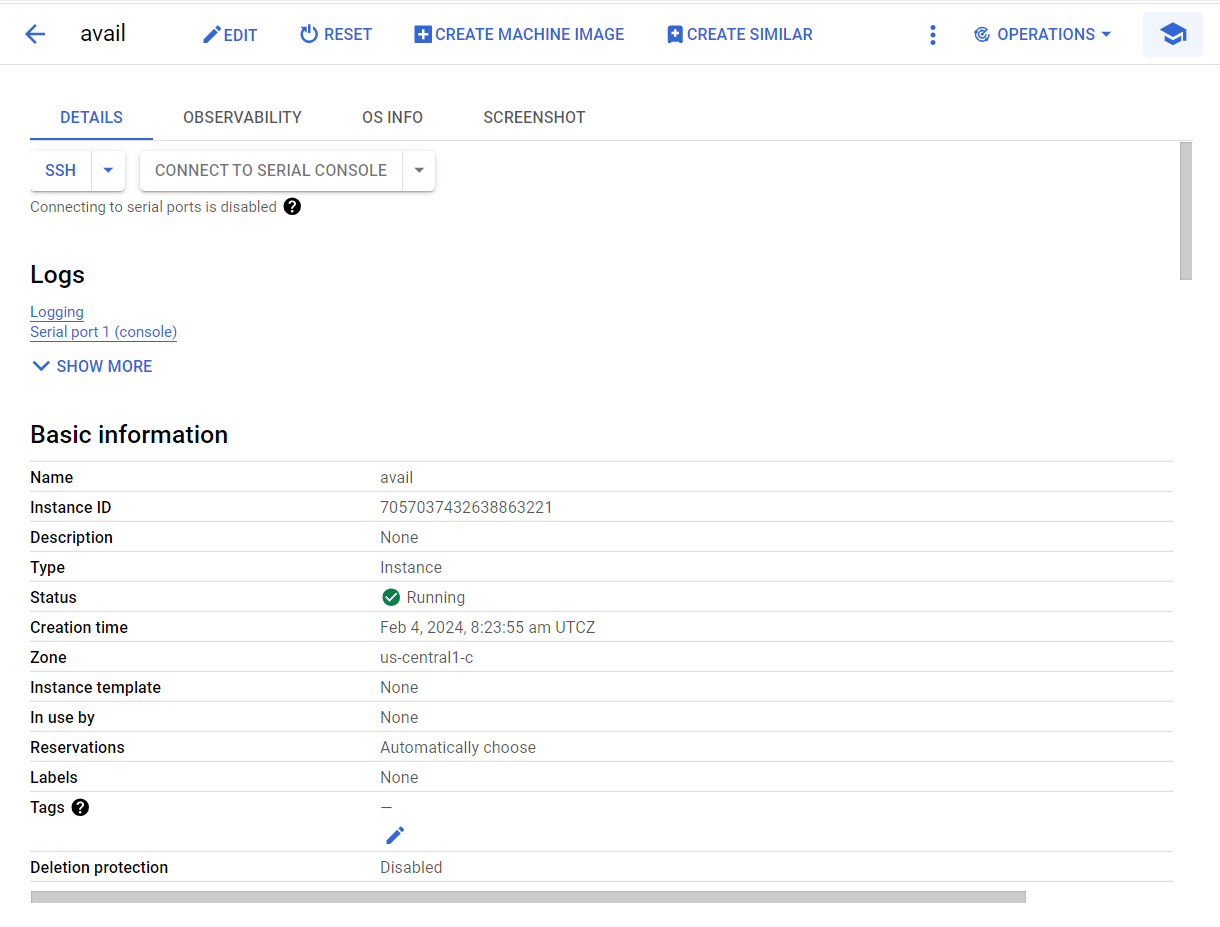
Click on edit and scroll down to external iPv4 address
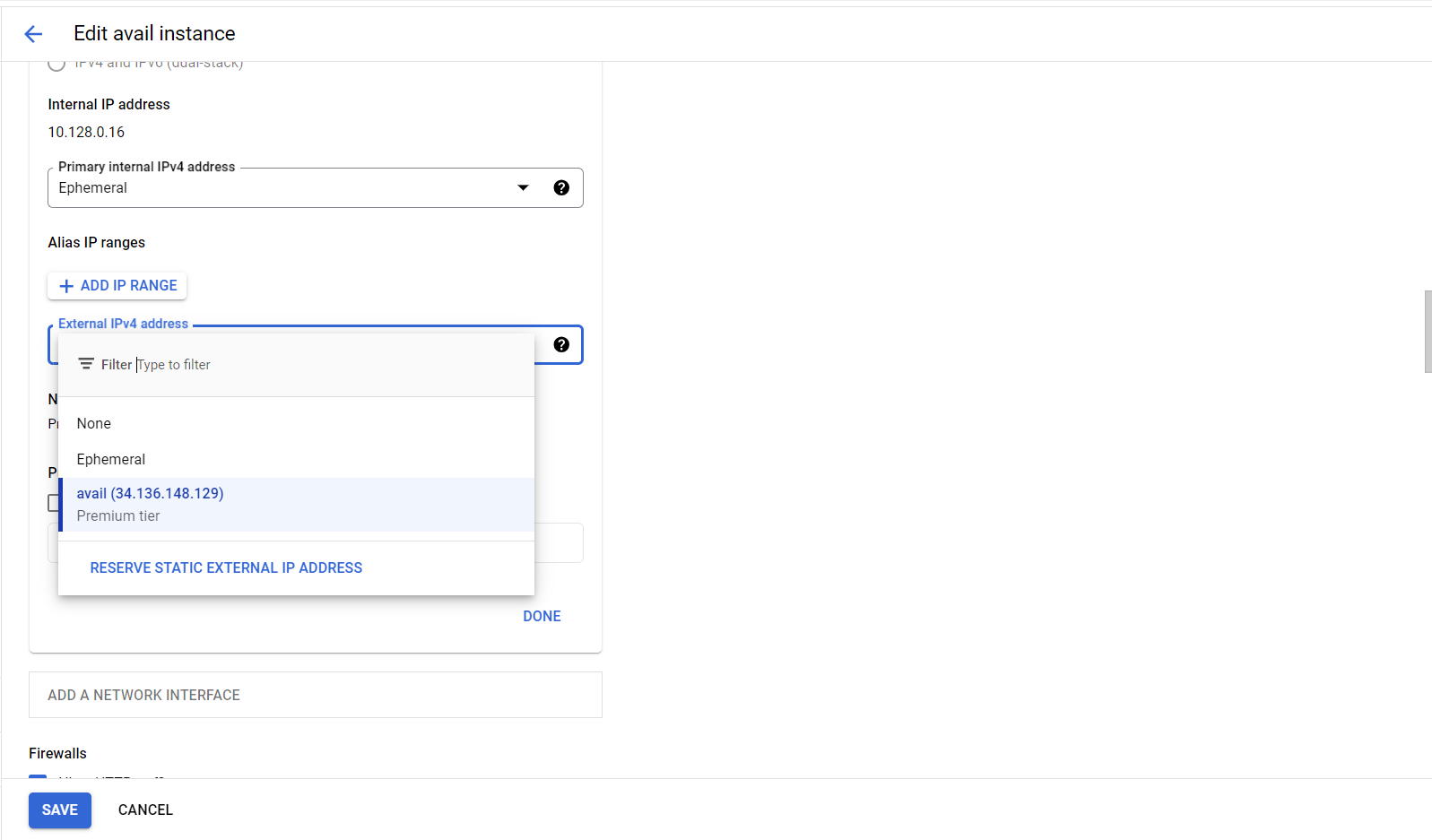
Select Reserve static IP address
Add your specified tag (Keep that in mind); I used avail as tag
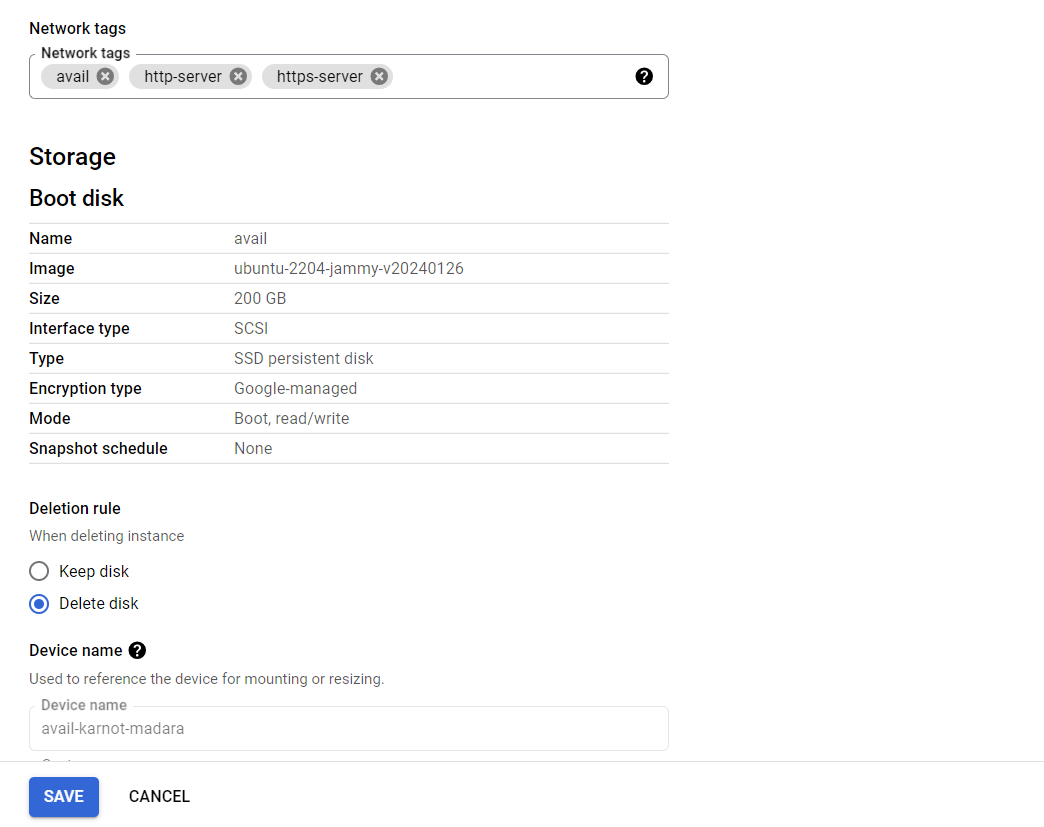
Click on Save
In Google Cloud Console, go to "VPC network" and select "Firewall rules."
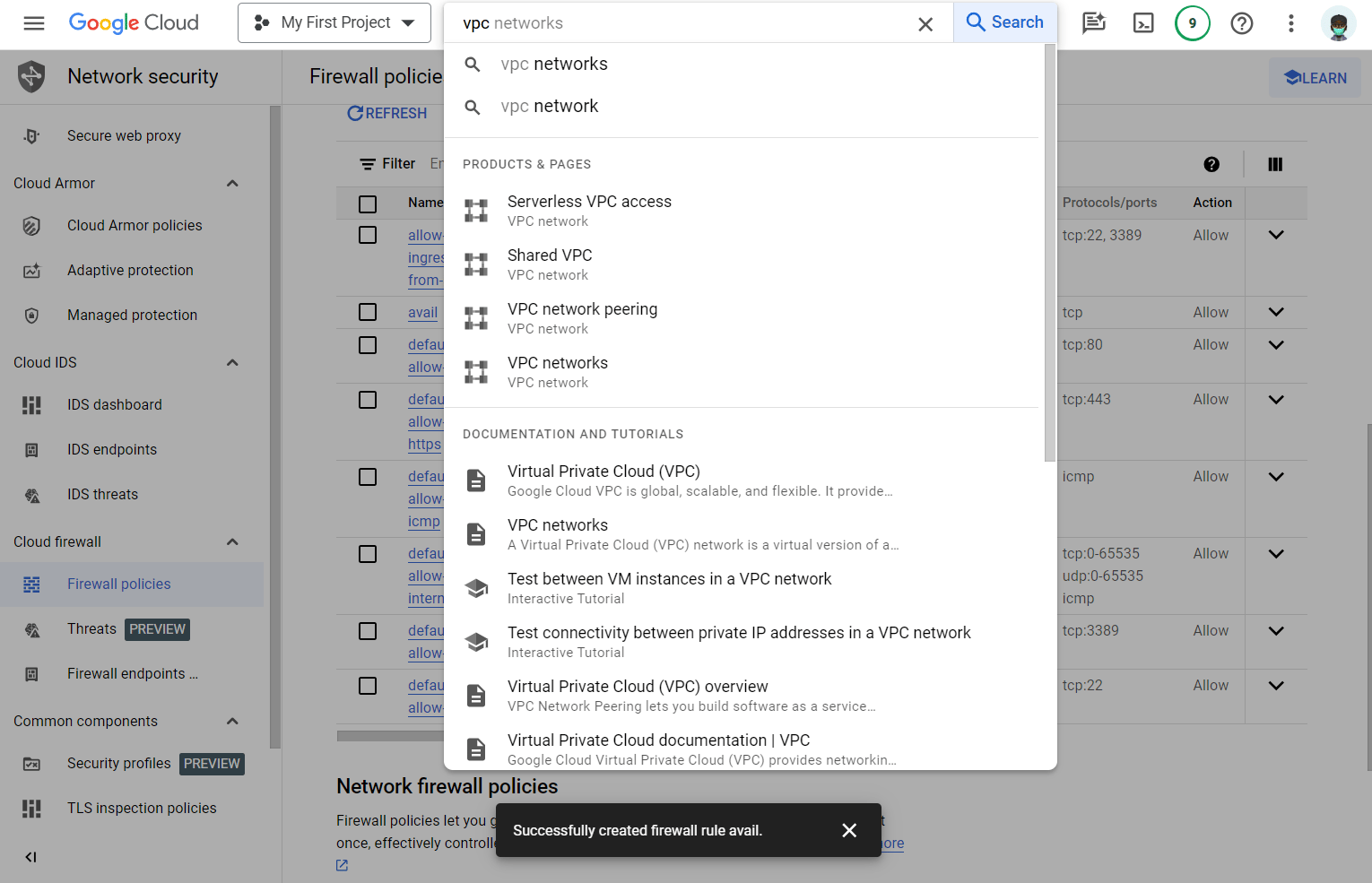
2. Click on "Create Firewall Rule."
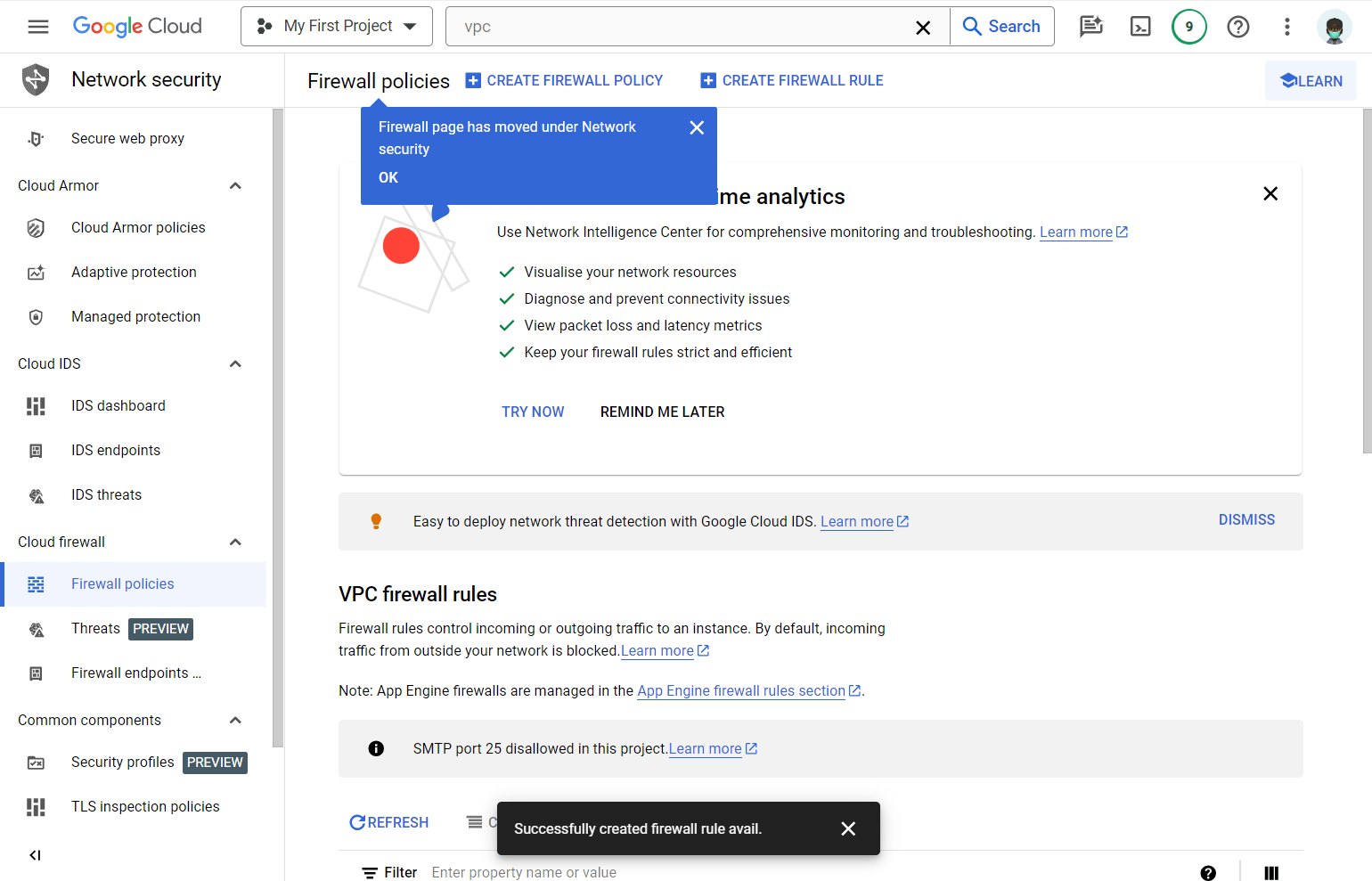
Give your rule a name.
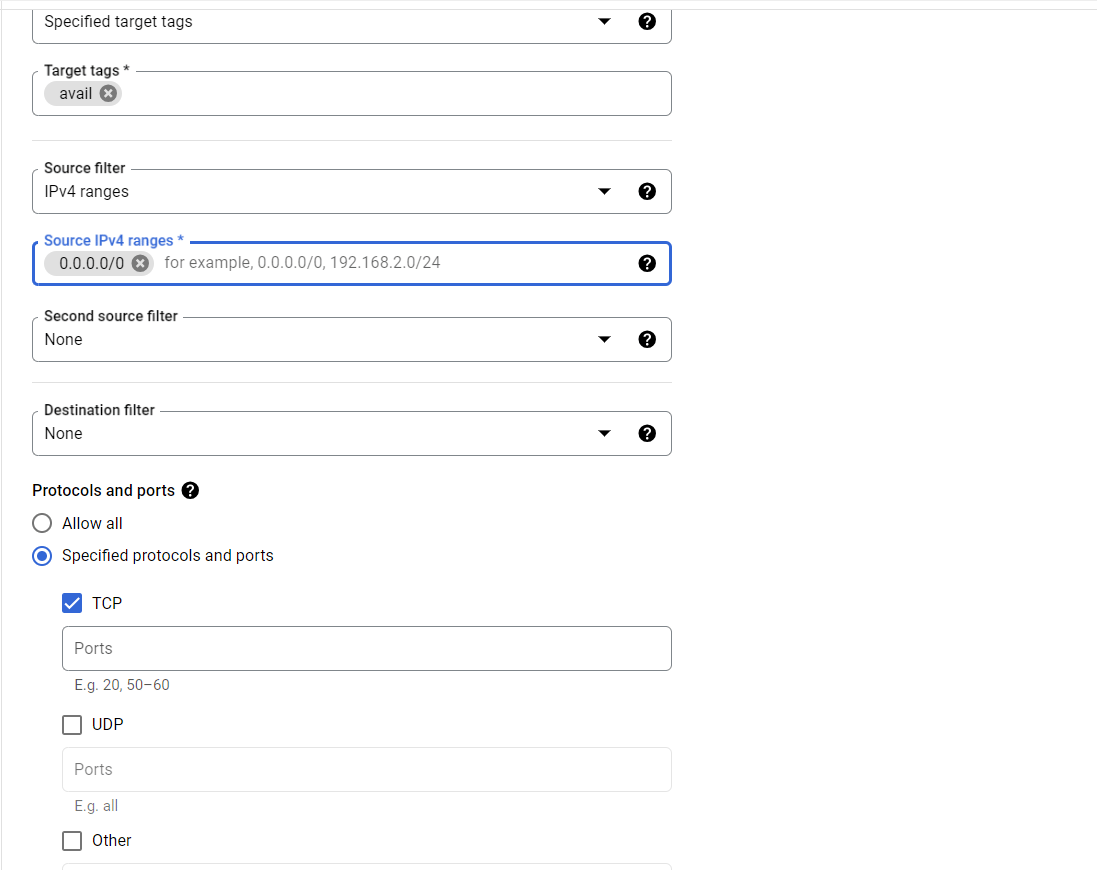
Set the "Source IP ranges" to
0.0.0.0/0to allow traffic from any IP, add a tag which you added to your VM. eg: avail
*
Set the "Allowed protocols and ports" to the specific protocols and ports your application requires (e.g.,
tcp:80for HTTP).Click "Create" to save the rule.
Navigate to the avail listing repository and click on create new file:
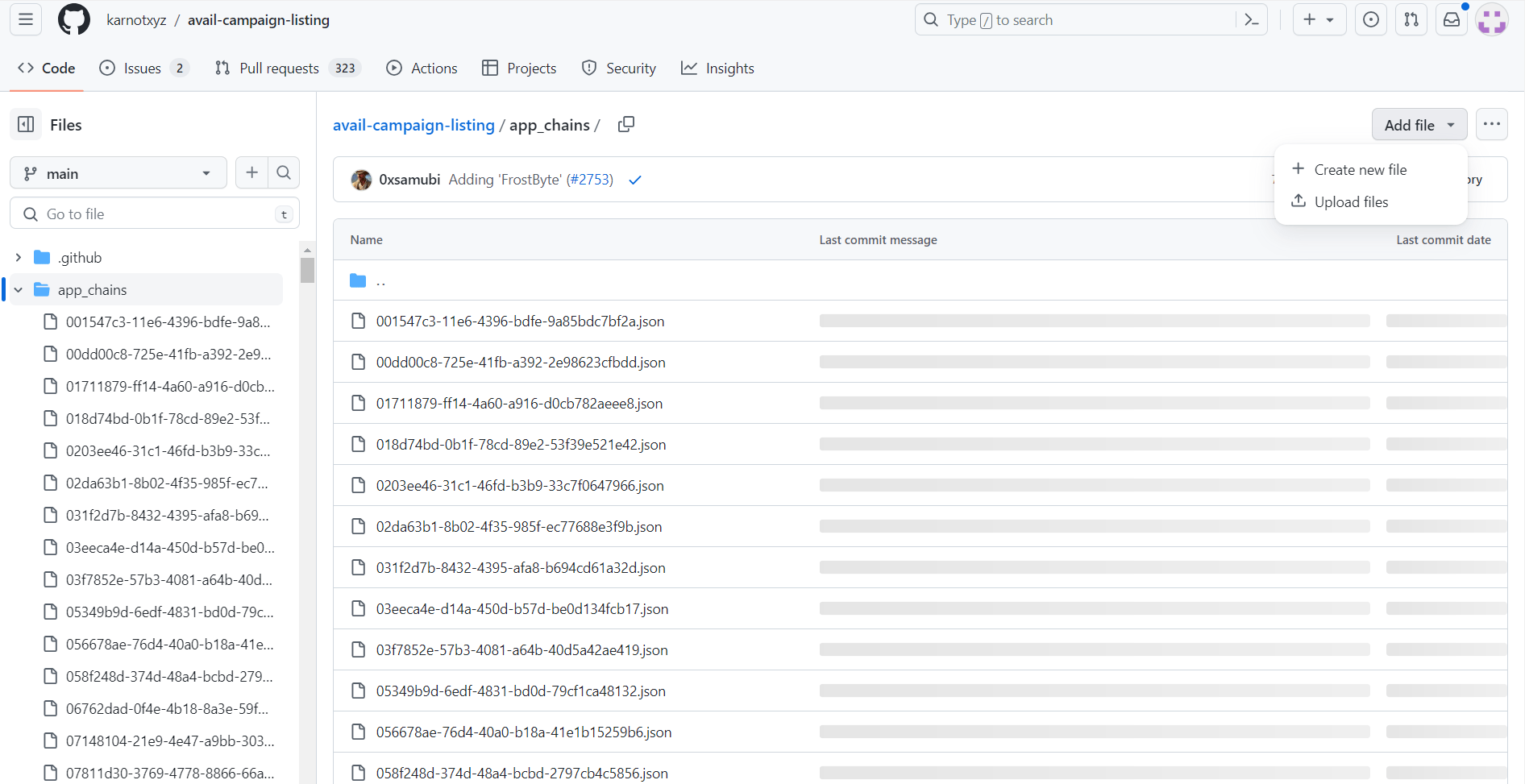
Generate your UUID with this UUID generator. Use that as your file name (UID.json):
https://www.uuidgenerator.net/version4
Copy UUID
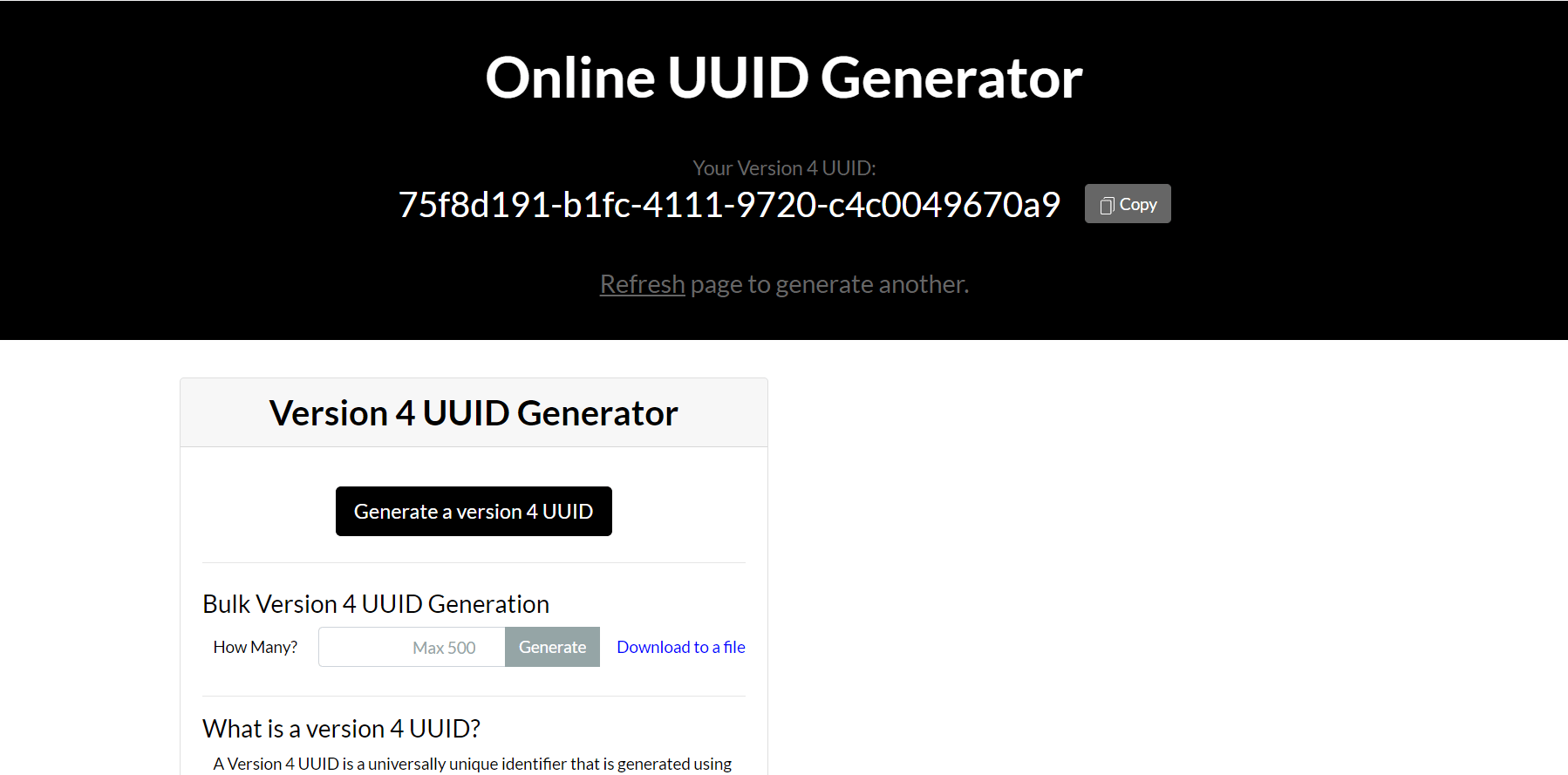
Paste UUID as file name and paste this sample content in the file:
{
  "name": "Hoodrun",
  "logo": "https://r.resimlink.com/qkPWGUVwSd1T.webp",
  "rpc_url": "http://206.189.8.43:9944",
  "explorer_url": "http://206.189.8.43:4000",
  "metrics_endpoint": "http://206.189.8.43:9615/metrics",
  "id": "f280baa2-7da6-4f6d-96fc-5b89008561d9"
}
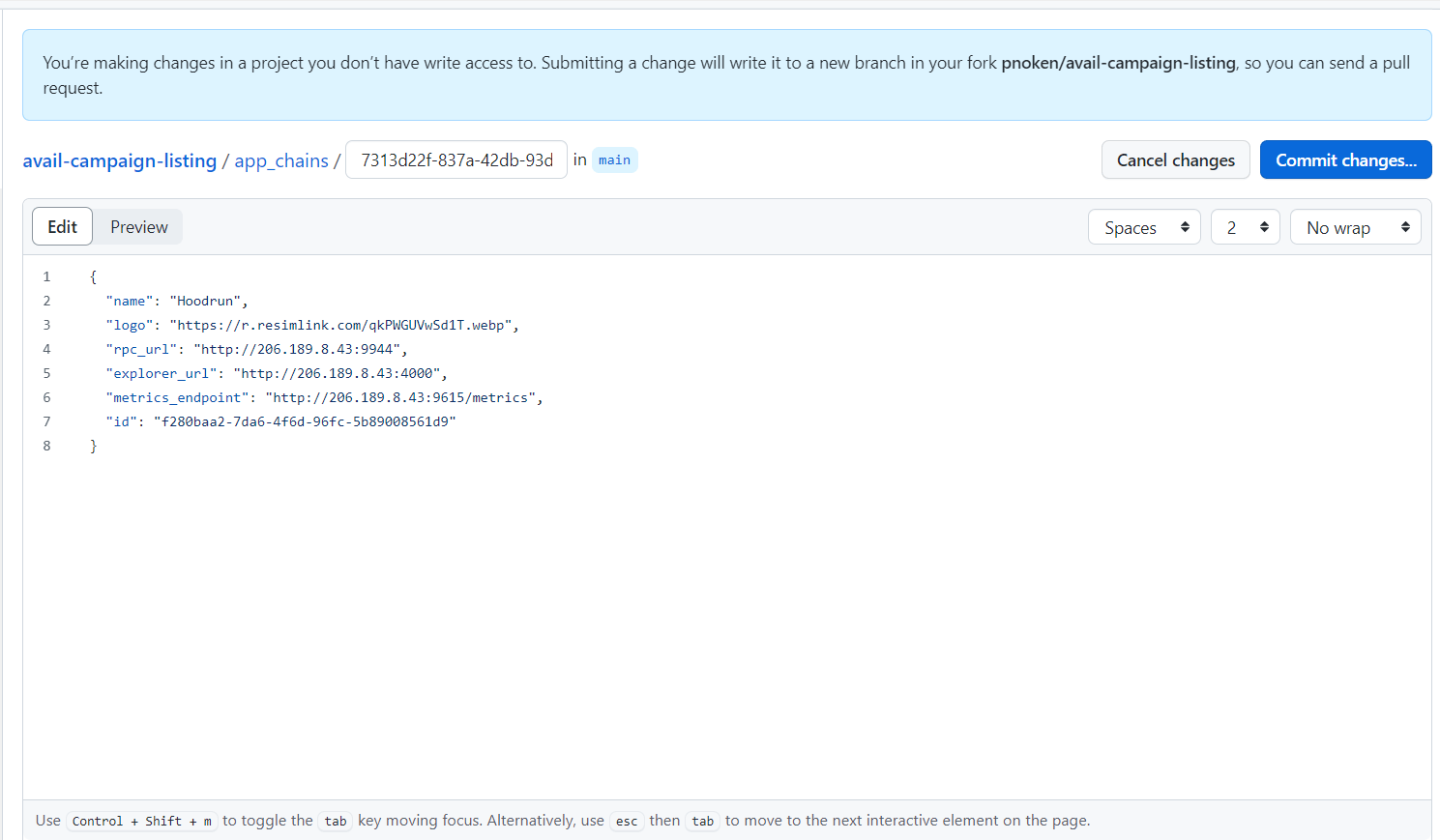
Now start editing by copying your static IP and replacing with the existing IP. Don’t forget to paste your UUID as ID. You can upload and generate your image url with the link below:
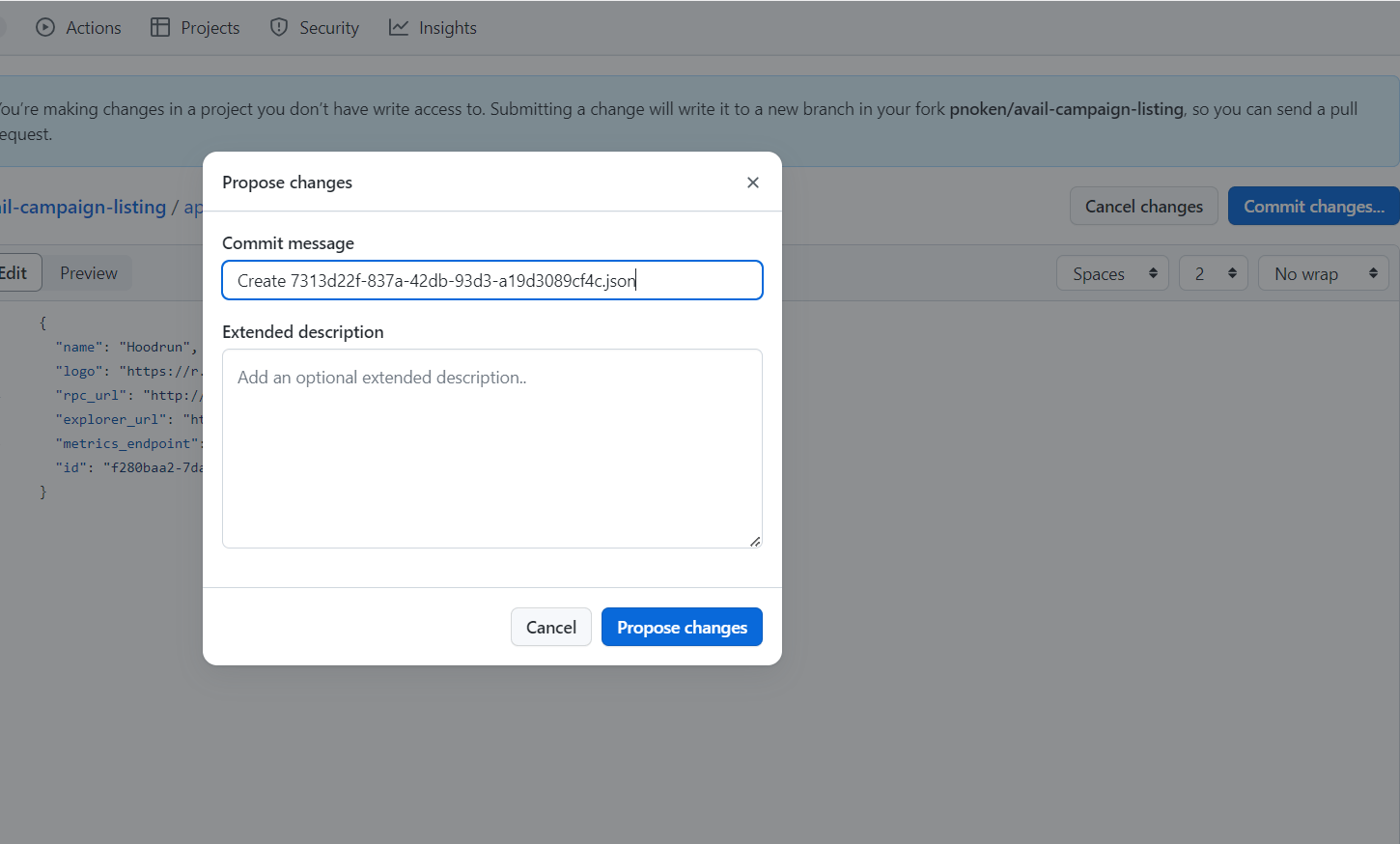
Now click commit changes and choose propose changes:
Click on “create pull request” button
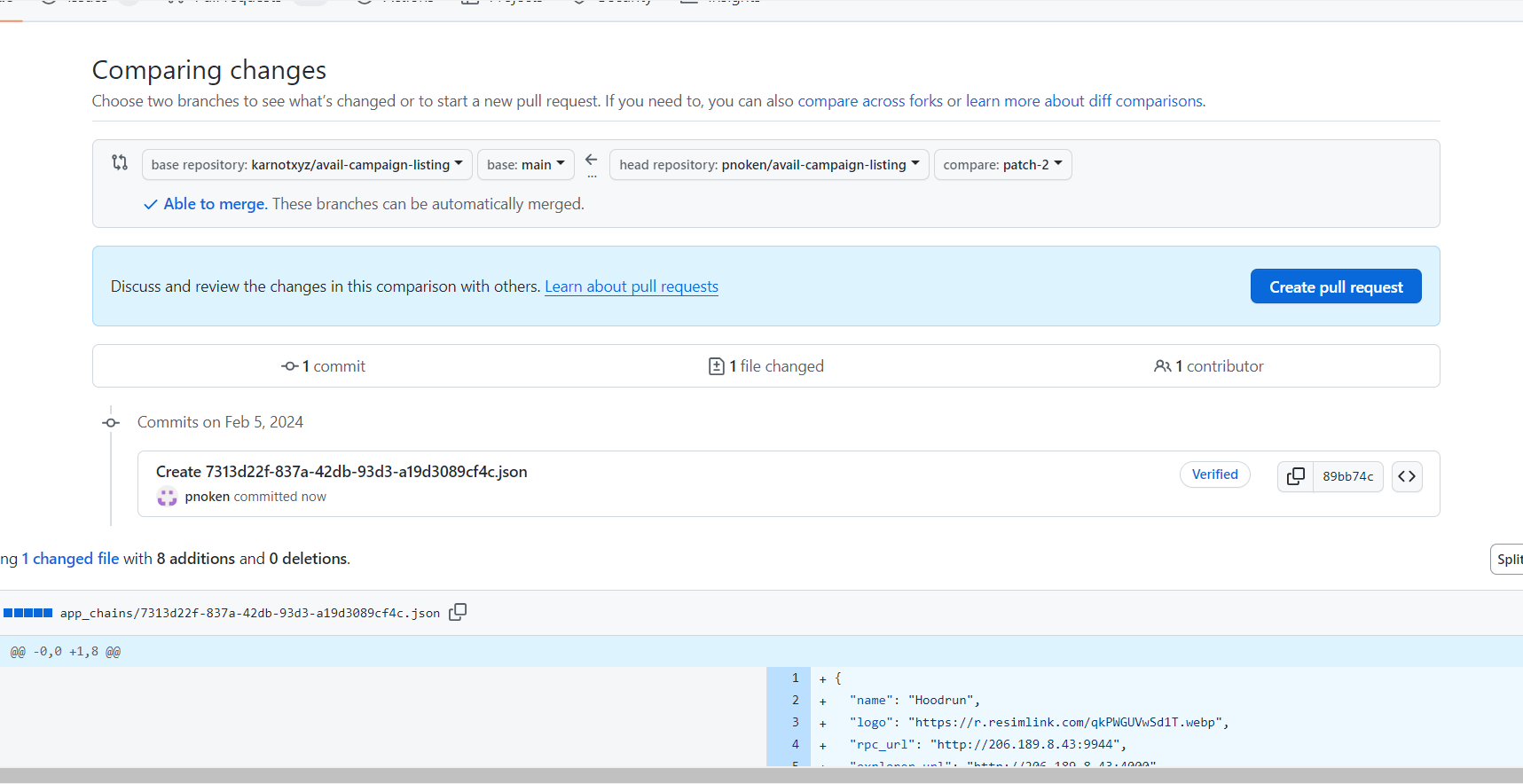
Use same format in the image below and replace AppchainName with your appchain name
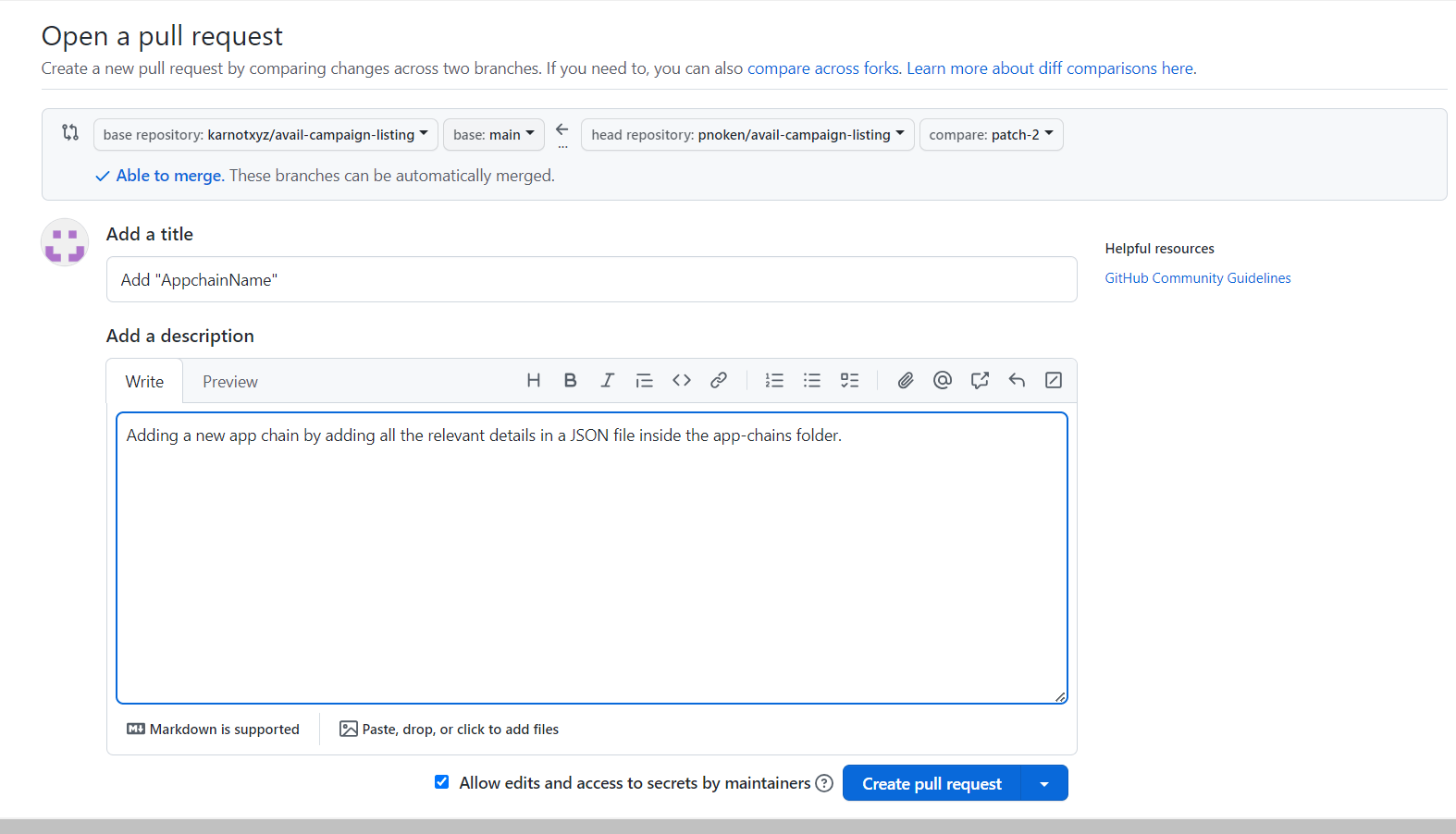
Now click create pull request and make sure it passes the checks and able to merge
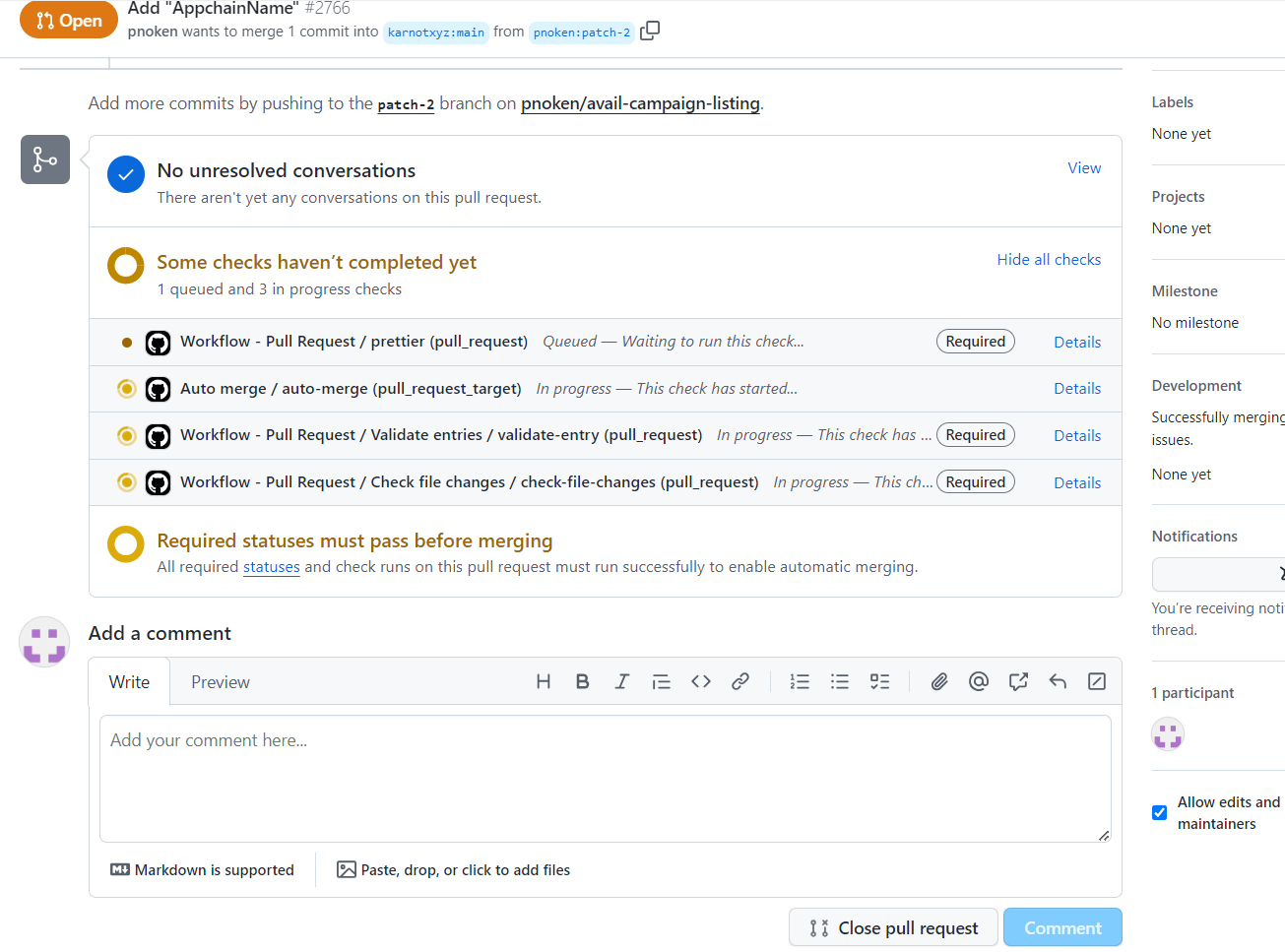
THAT’s IT! YOU’VE COME TO A SUCCESSFUL END!!!!