


So you couldn't get certbot to work for whatever reason and can't figure out why. No worries. This guide will show you how to add a SSL certificate to your site manually with SSLFREE which also uses Let's Encrypt.
Generate a TXT records with SSLFREE
Go to https://sslfree.io/ in your web browser.
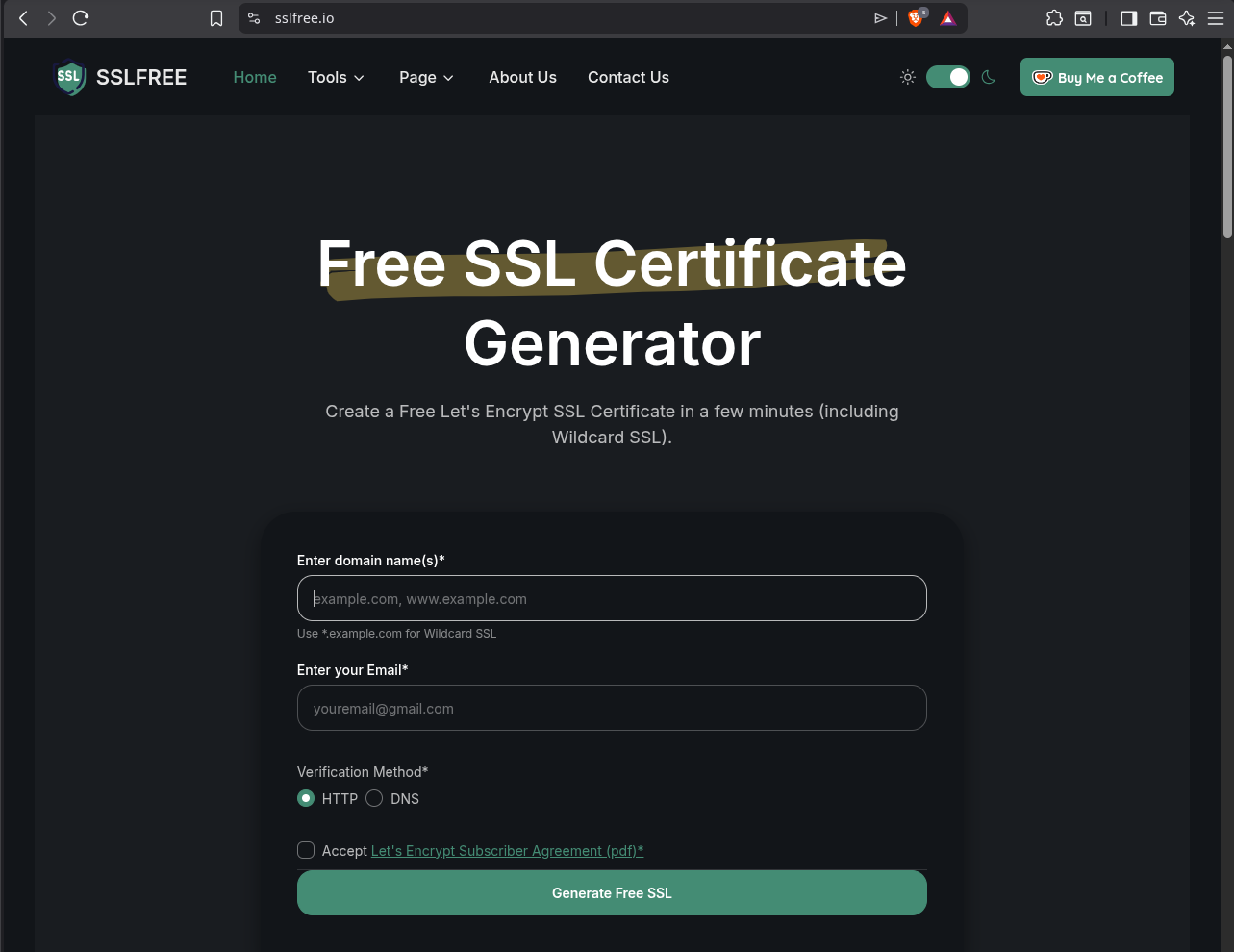
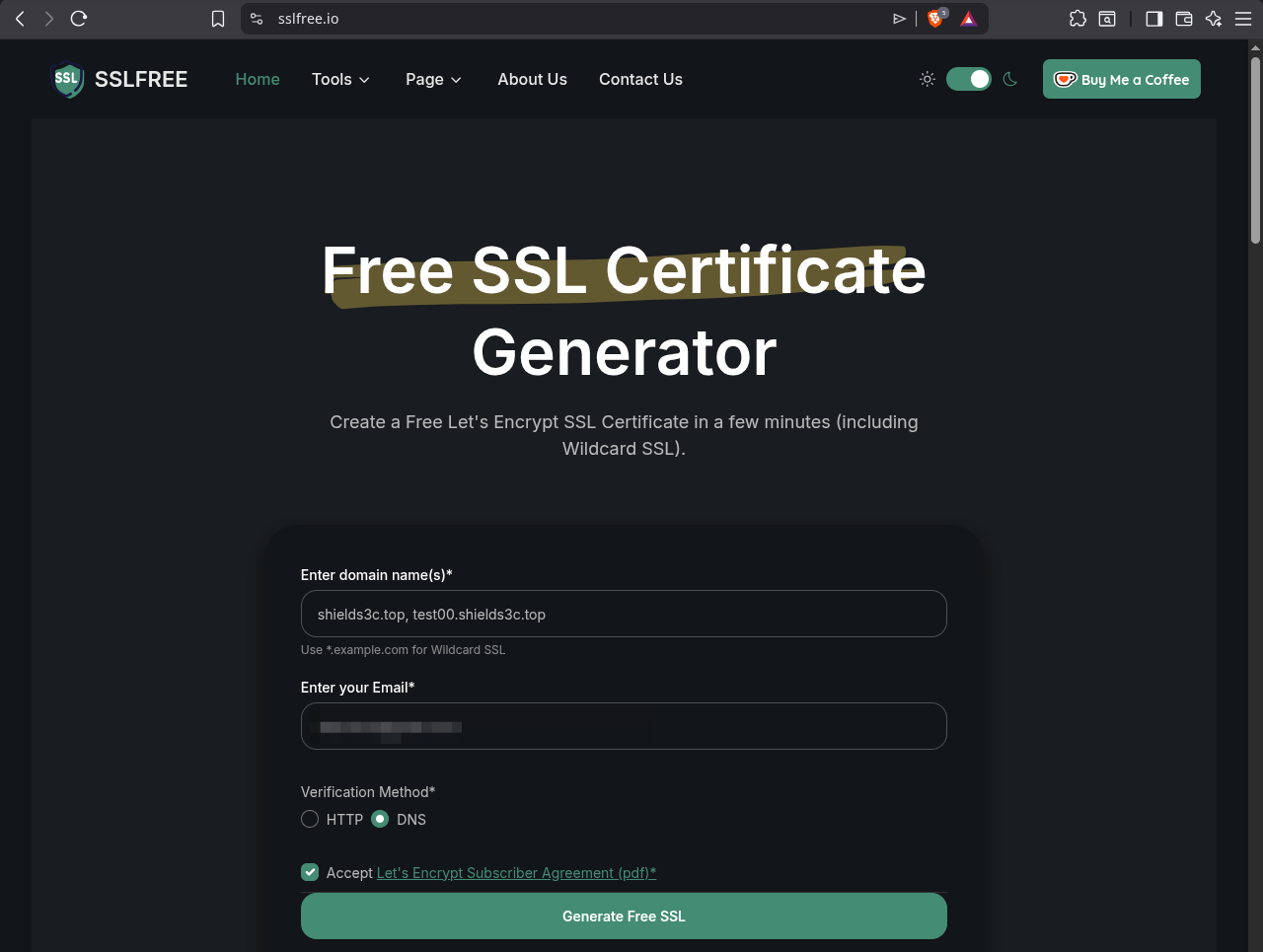
In the first field, enter a comma separated list of domains and subdomains you want to associate the SSL certificate for.
Enter your email next.
Select DNS as the verification method.
Check the Accept box.
Click Generate Free SSL.
You'll then see a page with a list of Domain TXT record and it's Value pairs. There is one pair for each domain and subdomain that you entered before.
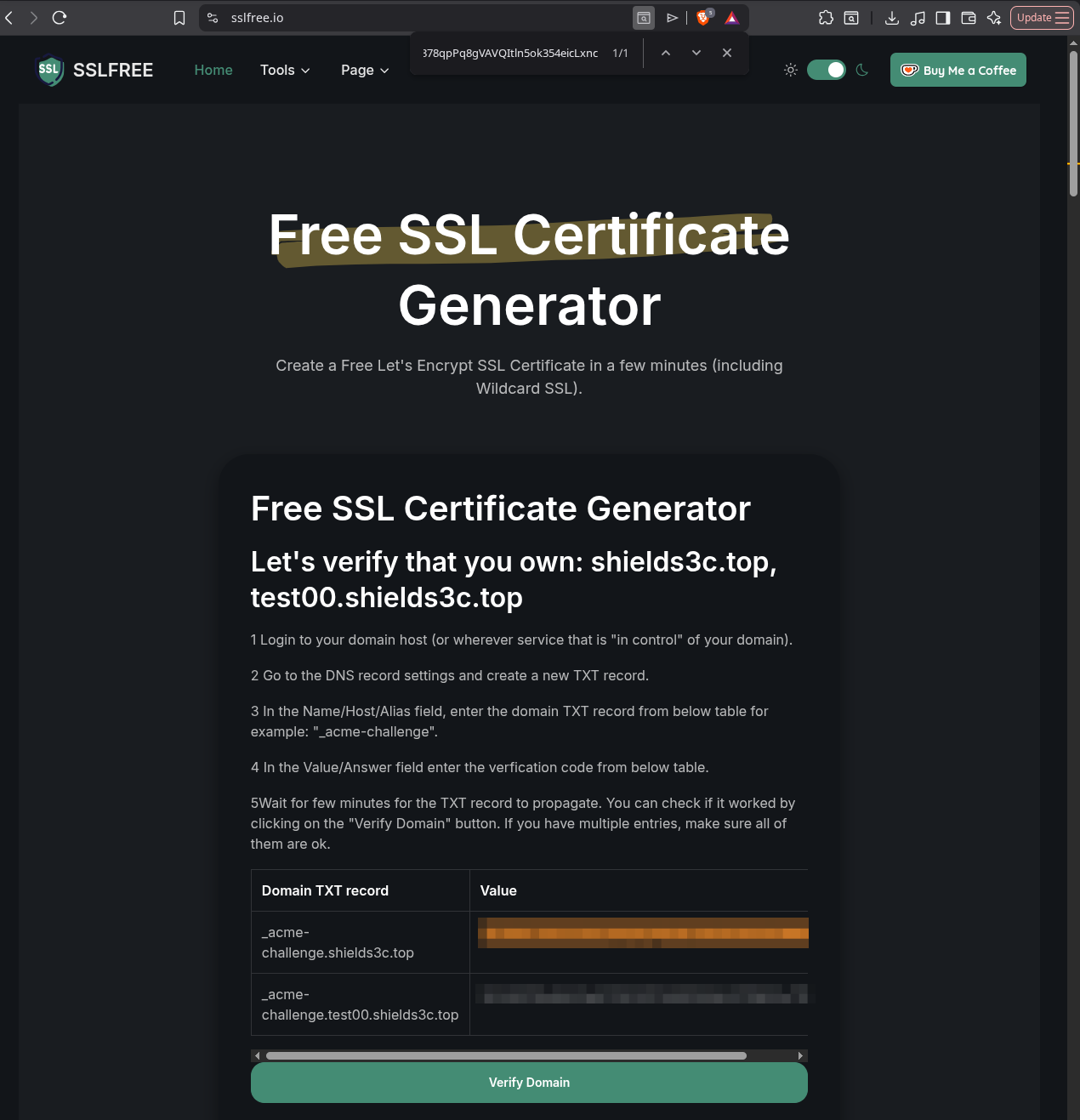
The pairs look something like this.
| Domain TXT record | Value |
|---|---|
| _acme-challenge.shields3c.top | txt_value_for_top_level_domain_00 |
| _acme-challenge.test00.shields3c.top | txt_value_for_subdomain_00 |
Add TXT records
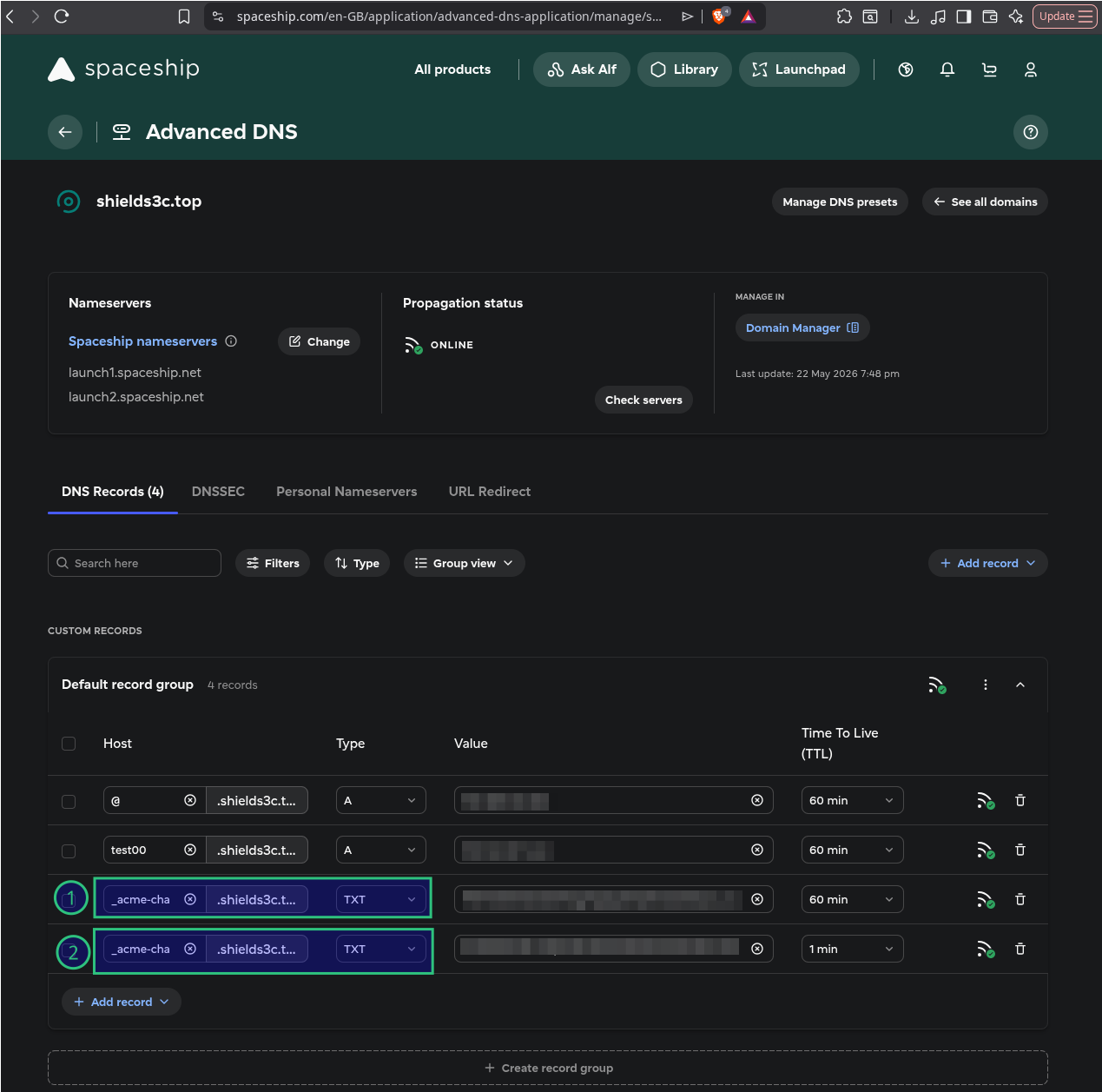
Next go to your domain name hosting provider and create a TXT type for each pairs of values that you have.
Put the Domain TXT record without the top level domain in the Host field. The subdomain prefix is left in.
| Domain TXT record | Actual value to put in Host field | Notes |
| _acme-challenge.shields3c.top | _acme-challenge | Labelled (1) in the screenshot below |
| _acme-challenge.test00.shields3c.top | _acme-challenge.test00 | Labelled (2) in the screenshot below |
Put the TXT Value in the Value field.
Select a low TTL initially to speed up propagation. You can increase the TTL later.
Wait for DNS TXT record Propagation
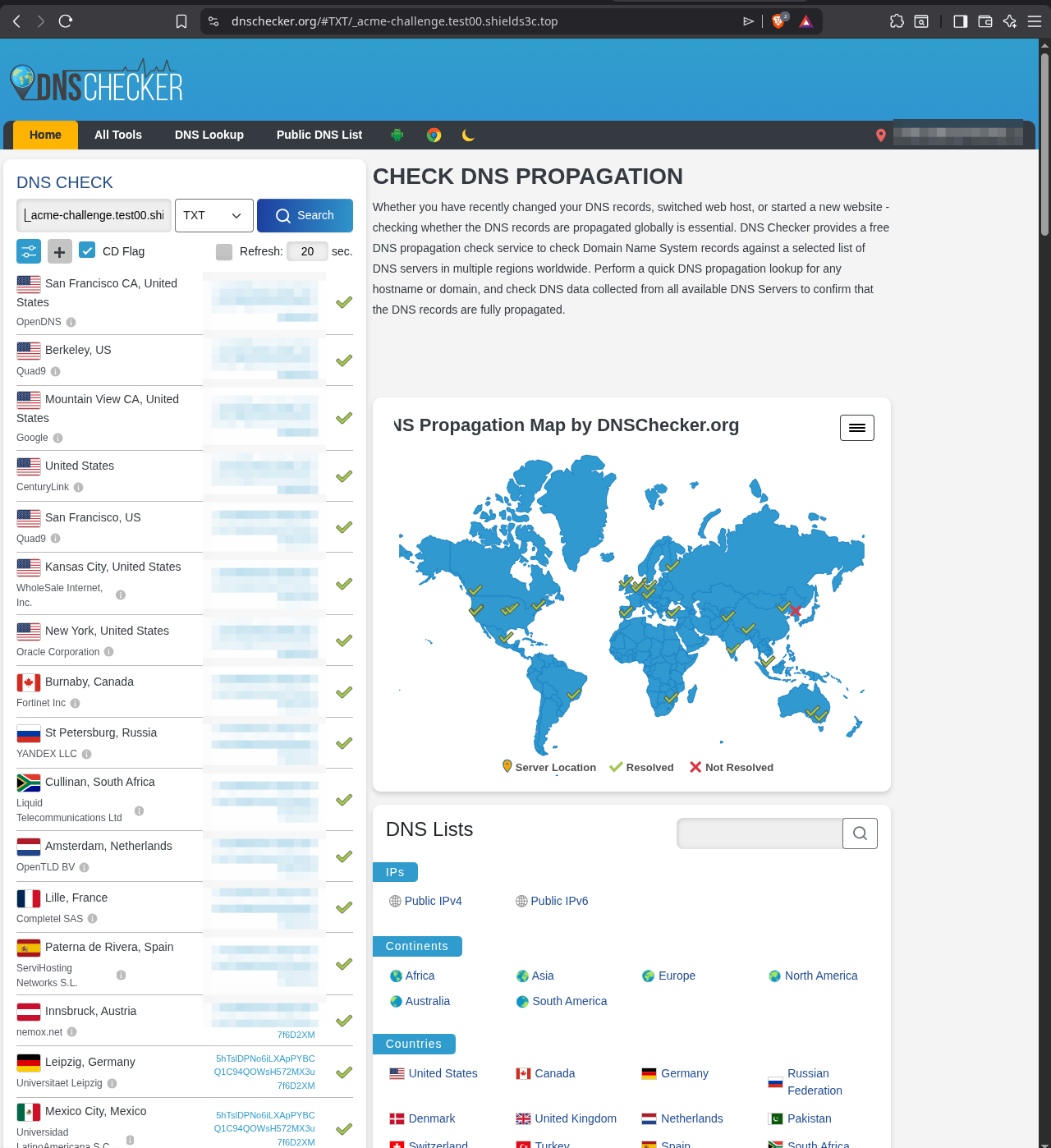
Next as suggested by SSLFREE check the status of the DNS propagation at https://dnschecker.org/.
Enter the Domain TXT record and select TXT from the dropdown, then click the SEARCH button. Wait until you get green ticks for each of the DNS servers listed.
Generating SSL Certificates
Back in SSLFREE, click the Verify Domain button.
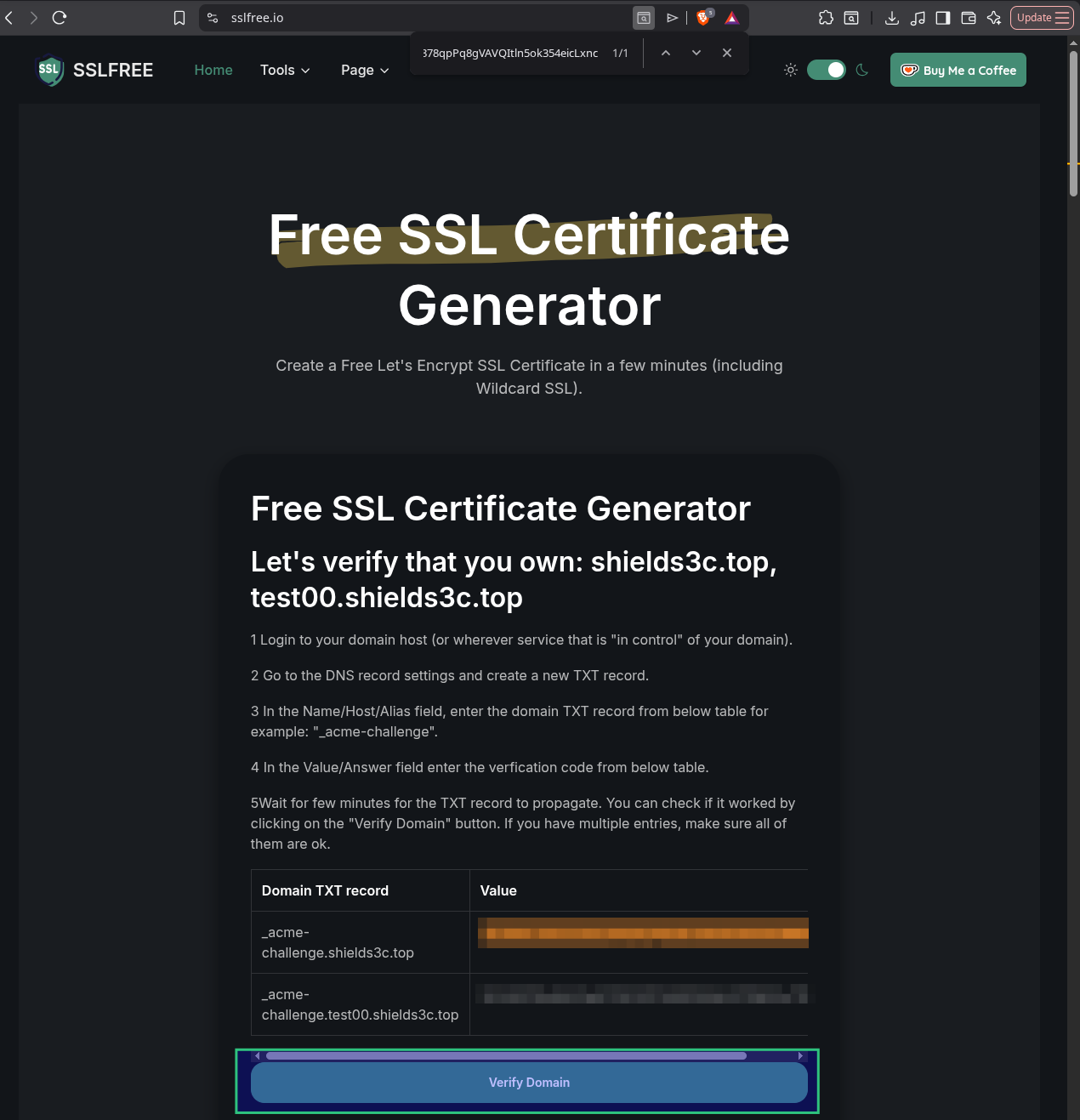
If everything went well, you'll be presented on the next page with download buttons to these three files:
-
certificate.crt
-
ca_bundle.crt
-
private.key
Download them all.
Combining Certificates
Combine the certificate.crt and ca_bundle.crt files into a single file:
cat certificate.crt <(printf "\n") ca_bundle.crt > fullchain.crt The printf is needed to insert a line break between the two file's contents in the final fullchain.crt file.
Copy Certificates and Private key to /etc/ssl
Next copy or move these files to /etc/ssl. You can put the fullchain.crt file in /etc/ssl/certs/ and the private.key file into /etc/ssl/private/ directories. Give them a meaningful name.
sudo cp fullchain.crt /etc/ssl/certs/shields3c.top.fullchain.crt
sudo cp private.key /etc/ssl/private/shields3c.top.private.key
Update Nginx Server Blocks to use SSL Certificates
Next open up your Nginx server block (usually in /etc/nginx/sites-enabled).
-
Change the listen directive from
80to443 ssl. -
Add the full path to the
fullchain.crtfile that you put in/etc/sslfor thessl_certificatedirective. -
Add the full path to the
private.keyfile that you put in/etc/sslfor thessl_certificate_keydirective.
server {
  listen 443 ssl;

  error_log  /var/log/nginx/test00_error.log  warn;

  server_name test00.shields3c.top;

  ssl_certificate /etc/ssl/certs/shields3c.top.fullchain.crt;
  ssl_certificate_key /etc/ssl/private/shields3c.top.private.key;

  location / {
    # ... your Nginx server block rules ...
  }
}
Recheck the Nginx configuration files for syntax errors.
sudo nginx -tIf you get no errors, restart Nginx.
sudo systemctl restart nginxVisit your site in a browser with the https protocol and it should now have a valid SSL Certificate.
Repeat the same steps for each remaining Nginx server block for each domain and subdomain that that is associated with the SSL certificate.
Troubleshooting
Browser still shows "Not secured"
If you tested previously the browser may still be using cache SSL settings.
Clear the cache for the site, set the browser to open in a new tab instead of "where you left off" and close it.
Restart your browser and navigate to the https domain.
Nginx syntax checker returns "nginx cannot load certificate bad end line"
This happens when you concatenate the certificate.crt and ca_bundle.crt files together without adding a line break between the two file's contents.
Remember to use the printf as described above.
Conclusion
Congratulations, give yourself a pat on the back. You can now manually add a SSL Certificateto a domain or sub domain whose content is powered by Nginx.