This guide is based off the official Sui installation documentation.
Prerequisites
-
curl
Installation of Sui
Download the suiup install script and run it.
$ curl -sSfL \
  https://raw.githubusercontent.com/Mystenlabs/suiup/main/install.sh \
  | sh
Example output:
suiup installer script
This script will install the suiup binary to your system.
Detected OS: linux
Detected architecture: x86_64
Latest version: v0.0.13
Download URL: https://github.com/MystenLabs/suiup/releases/download/v0.0.13/suiup-Linux-musl-x86_64.tar.gz
Downloading https://github.com/MystenLabs/suiup/releases/download/v0.0.13/suiup-Linux-musl-x86_64.tar.gz to /tmp/tmp.wAfXMseHS6/suiup.tar.gz...
Extracting binary...
Installing to /home/sum/.local/bin/suiup...
Successfully installed suiup to /home/sum/.local/bin/suiup
/home/sum/.local/bin is already in your PATH

You can now run suiup --help to get started.
For more information, visit: https://github.com/MystenLabs/suiup
Install Sui. Note that this example will use the Sui Testnet.
$ suiup install sui@testnetexample output:
Downloading release list
Detected: ubuntu-x86_64...
Last testnet release: v1.70.2
Downloading release:   [00:02:33] [========================================] 813.91 MiB/813.91 MiB (0s) Download complete    Adding binary: sui-v1.70.2
Extracting file: sui
 'sui' extracted successfully!
Do you want to set this new installed version as the default one? [y/N] y
Installing binary to /home/sum/.local/share/suiup/binaries/testnet/sui-v1.70.2
Setting sui as default
[testnet] sui-v1.70.2 set as default
Confirm that Sui is installed.
$ sui --versionsui 1.70.2-6d4ec0b0621dInstallation of Sui Client
This is based off the official Configure a Sui Client.
Run the command.
$ sui client ... and what did you see? The output of sui client --help? Hold your horses, did you install Sui before and forgotten about it?
Well check if ~/.sui/sui_config/client.yaml exists.
$ ls ~/.sui/sui_config/client.yaml What it doesn't exist but you still didn't get the prompt to initialize a new client.yaml file! No worries, as a workaround run this command.
$ sui client active-address Then you'll finally see the prompt to initialize a new`client.yaml` file, hooray! Press Y and enter when prompted to create it.
No sui config found in `~/.sui/sui_config/client.yaml`, create one [Y/n]?
Y
Generated new keypair and alias for address with scheme "ed25519" [focused-plasma: <your_address>]
  secret recovery phrase : [your_recovery_phrase_here]
Created "~/.sui/sui_config/client.yaml"
Set active environment to testnet
<your_address>
From the output, note down:
-
Your recovery phrase in your favourite password manager.
-
Your new address on Testnet.
-
and optionally if you feel you have a bad memory, note down the location of the
client.yamlfile.
Obtain Testnet Tokens
Obtain the URL to get Testnet tokens.
$ sui client faucetSample output.
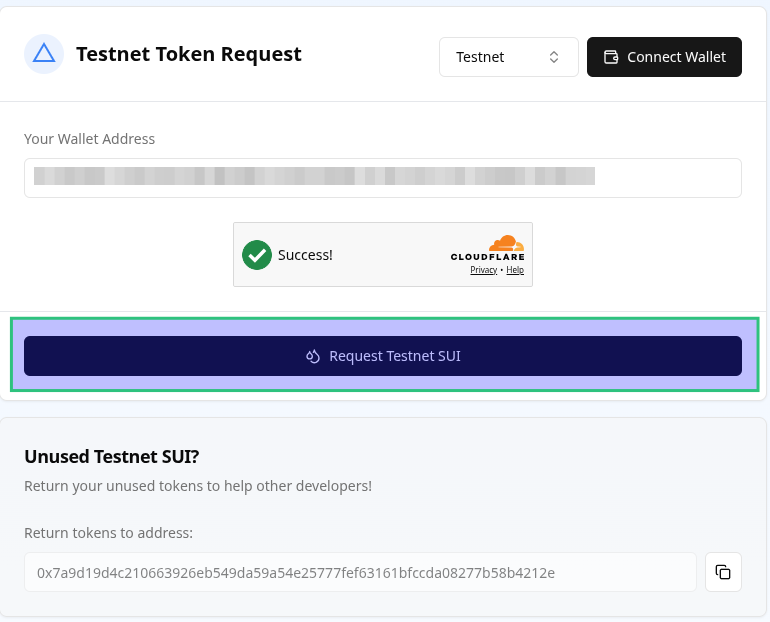
For testnet tokens, please use the Web UI: https://faucet.sui.io/?address=<your_address>Copy your outputted faucet URL and paste into your web browser. Click on the Request Testnet SUI button.
Confirming Testnet Tokens
With the Command Line
Have some patience and after a few minutes (maybe about 20), check your balance.
$ sui client balanceand hooray the output shows that we got 1 SUI!
╭────────────────────────────────────────╮
│ Balance of coins owned by this address │
├────────────────────────────────────────┤
│ ╭─────────────────────────────────╮    │
│ │ coin  balance (raw)  balance    │    │
│ ├─────────────────────────────────┤    │
│ │ Sui   1000000000     1.00 SUI   │    │
│ ╰─────────────────────────────────╯    │
╰────────────────────────────────────────╯
With SuiScan
Go to the SuiScan URL in a web browser https://suiscan.xyz/mainnet/accounts.
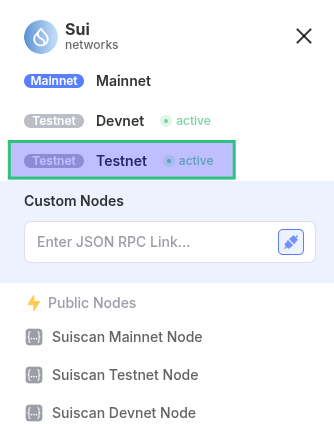
Click on the Mainnet near the top right.

We want to change it to scan on Testnet, so go ahead and click on Testnet.
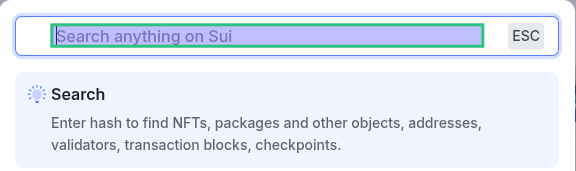
Click on the Search anything on Sui box.
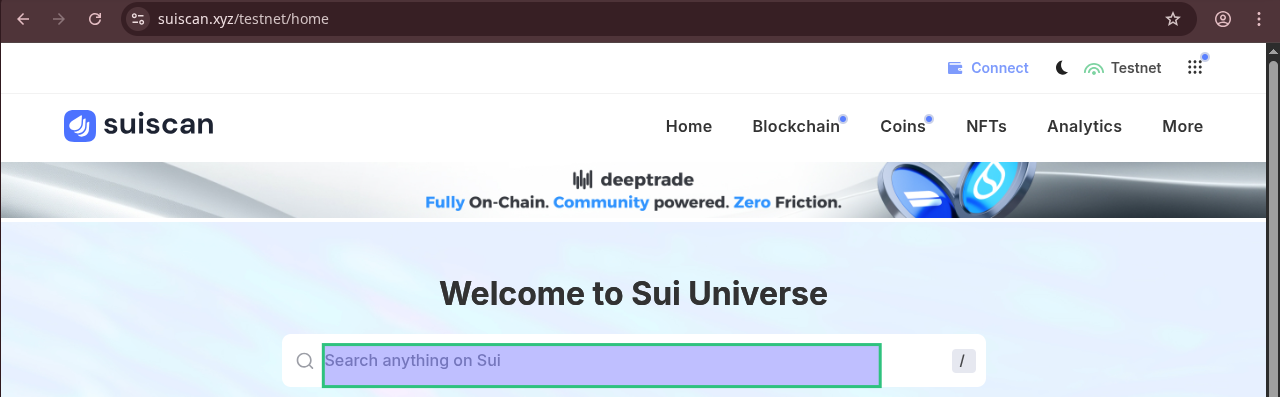
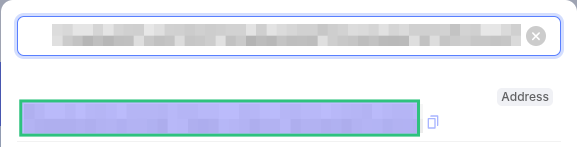
Copy your Sui Testnet address that you diligently noted down earlier and paste it into the search box.
Click on your address that shows up.
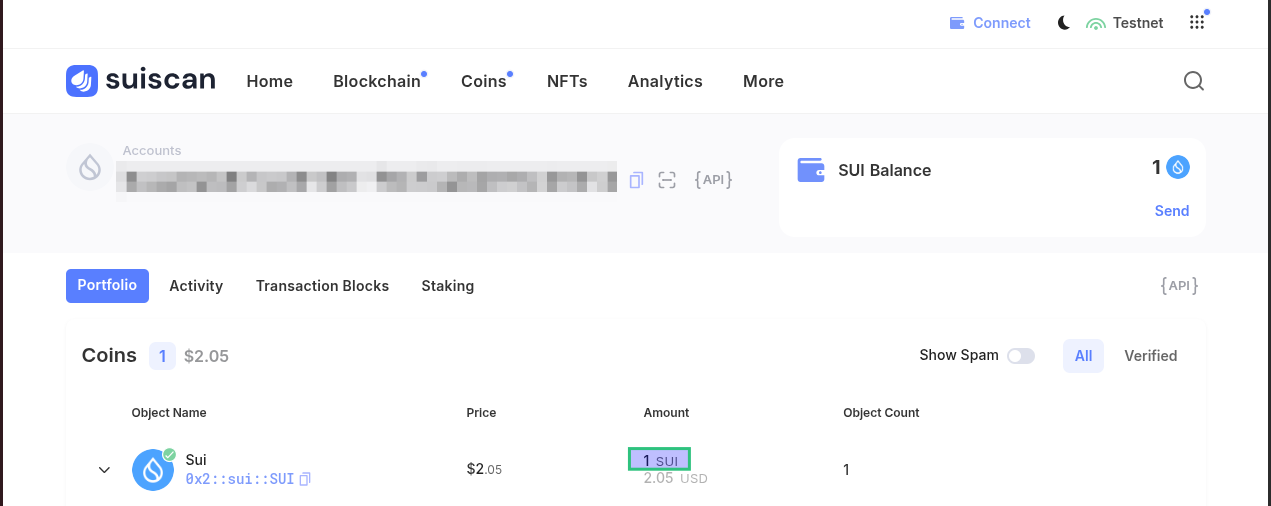
There you have it, 1 shiny new SUI.